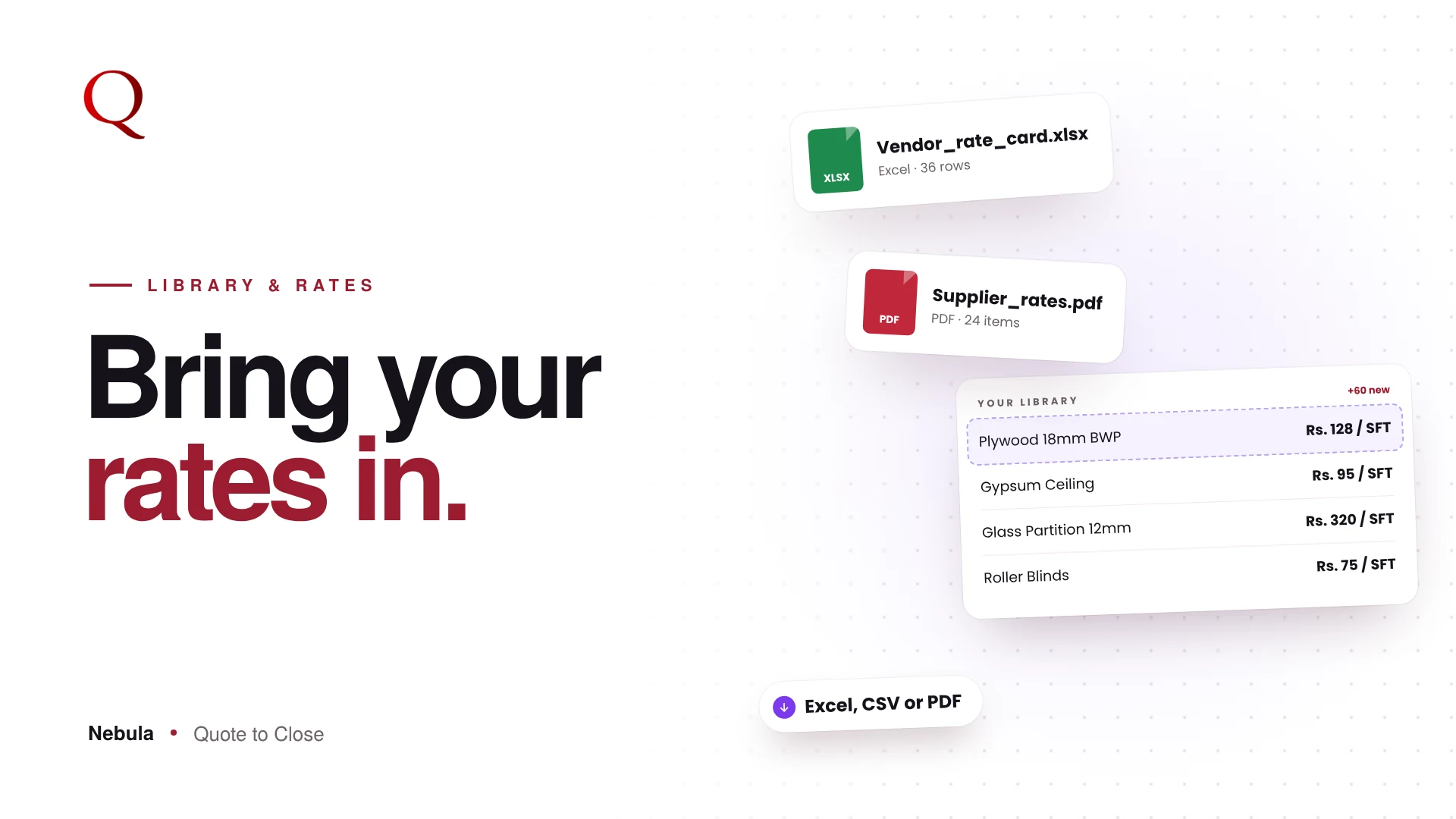
If you want to import a rate list from Excel or PDF, the good news is that you already have the hard part: the rates. They sit in supplier price lists, old Excel sheets and PDFs from vendors. You should not have to type them all again. Here is how to bring them into Nebula.
Why import your rate list instead of typing it
Retyping a rate card is slow, and it is where mistakes creep in: a missing zero, a wrong unit, an old price. Importing keeps the numbers exactly as your supplier sent them, and you only check them once. After that, every quote in Nebula is priced from that list.
Before you start
- Use the latest rate card from each supplier
- One item per row works best, with a name, unit and rate
- Decide whether you are importing your cost rate or your selling rate; most studios keep the selling rate in the library
Step by step: import a rate list from Excel or PDF
- In the Quote Builder, find My Library on the left and click + Import.
- Drop in the file, or browse to it. Excel (.xlsx, .xls), CSV and PDF are accepted.
- Nebula shows a preview table of the items and rates it found. Excel and CSV are read directly; PDFs are read by Nebula AI.
- Check each row. Edit any name or rate that needs a change.
- Click Add to Library. The items are now in your library, ready for every quote.

After the import
Open Manage to review the new items. Set the GST % and HSN/SAC code where needed, and use Fix Units to clean up unit names, so every square-foot item uses the same unit.
What your imported rates power next
Once the library is full, the rest of Nebula gets faster. The Floor Plan Analyzer prices matching items from it, so a draft BOQ from a client's plan already carries your rates. Type-ahead fills them as you build a quote. And Preview presents the result as a branded, room-wise PDF. One import today means every client-ready quote after it is built on prices you have already checked.
Why this wins projects
A full library on day one means your first quote in Nebula is already fast and consistent. Every quote after that is priced from rates you checked once.
Questions studios ask
What if my PDF rate card is a scanned copy?
Nebula AI reads PDF rate cards and lists what it finds in a preview. Check each row before saving, especially on unclear scans.
Can I import from several suppliers?
Yes. Import each rate card separately; all the items end up in the same library.
Can I fix mistakes after importing?
Yes. Library Manager lets you edit any item's description, unit, rate, GST and HSN/SAC at any time.
Read next
- Interior Rate List Software: Your Own Rates in Every Quote
- Floor Plan to BOQ in Minutes: How Nebula's AI Floor Plan Analyzer Works
A designer's note
The biggest reason people abandon new software is the empty start: a blank screen and hours of setup before anything is useful. I designed Library Import to remove that. Your existing rate cards become your library in minutes, so the very first quote you build in Nebula already uses your own prices. The less time setup takes, the sooner the tool starts paying back.
Try Nebula: jetrow.in/products/nebula